
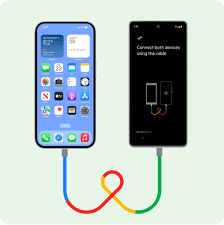
Making the Switch: How to Transfer Data from iPhone to Android Without Any Apps
So, you’ve made the decision. You’re ready to trade the walled garden of iOS for the open playground of Android. It’s an exciting move, but it often comes with one looming, anxiety-inducing question: “How on earth do I get all my stuff off my iPhone and onto my new Android phone?”
While there are plenty of great apps in both app stores that can help, you might not want to download another piece of software. Maybe you’re concerned about privacy, have limited storage, or just prefer a more direct method.
The good news is that it’s entirely possible to make this move without a single third-party app. This guide will walk you through the clean, built-in methods to transfer your most important data—your contacts, photos, and calendars—from your iPhone to your new Android device.
Before You Begin: The Golden Rule of Switching
Complete your transfer before you remove the SIM card from your iPhone. Your iPhone’s cellular connection (or a stable Wi-Fi network) is crucial for most of these methods. Set aside a good 30-60 minutes for the entire process.
Method 1: Transferring Your Contacts (The Most Important Step)
Your contacts are your digital lifeline. This is the simplest and most effective method, and it uses a tool you already have: your Google account.
How it Works:
You will export your contacts from iCloud and import them directly into your Google account. Once they’re in Google, they will automatically sync to any Android phone you log into.
Step-by-Step Guide:
- On your iPhone (or a computer):
- Ensure your contacts are synced to iCloud. Go to Settings > [Your Name] > iCloud and make sure the “Contacts” toggle is enabled (green).
- Open a web browser on your computer (or on your iPhone, though a computer is easier) and go to www.icloud.com.
- Sign in with your Apple ID.
- Click on Contacts.
- Export from iCloud:
- Select all your contacts. You can click one contact and then press Ctrl+A (Cmd+A on Mac) to select all.
- Click the gear icon (⚙️) in the bottom-left corner and select Export vCard…. This will download a single
.vcffile containing all your contacts to your computer.
- Import to Google:
- Now, go to Google Contacts in your web browser: contacts.google.com.
- Make sure you are signed into the exact Google account you plan to use on your new Android phone.
- On the left-hand sidebar, click Import.
- Click Select file and choose the
.vcffile you just downloaded from iCloud. - Click Import.
That’s it! Google will now process and import all your contacts. They will be waiting for you on your new Android phone as soon as you sign in with that same Google account.
Method 2: Transferring Your Photos and Videos
Your camera roll is a treasure trove of memories. To move them without an app, we’ll use Google’s own backup tool.
How it Works:
You will install one official Google app just once to back up your media to Google Photos. After the backup is complete, you can uninstall it from your iPhone. Your photos will then be accessible on your Android phone.
Step-by-Step Guide:
- On your iPhone:
- Download the official Google Photos app from the App Store.
- Open the app and sign in with your Google account.
- Backup & Sync:
- The app will immediately ask if you want to back up your photos. Tap Turn On.
- Go to Settings > Back up & sync within the Google Photos app.
- Crucial Step: To back up your photos in their original, full quality for free, you must change one setting. Tap Upload size and select Original quality. (Note: If you have a Google Pixel phone, you get free unlimited “Original quality” backup. For other accounts, this will use your Google Drive storage).
- Ensure you are on Wi-Fi and plug your phone into a charger. The initial backup can take a while if you have thousands of photos.
- On your new Android phone:
- Simply download the Google Photos app (it’s usually pre-installed) and sign in with the same Google account. All your photos and videos will be there instantly.
- Once confirmed, you can safely delete the Google Photos app from your iPhone.
Method 3: Transferring Your Calendar Events
You don’t need to manually recreate all your appointments and reminders. You can subscribe to your iCloud calendar directly on your Android phone.
How it Works:
You’ll find a secret URL for your iCloud calendar and add it as a subscribed calendar in Google Calendar.
Step-by-Step Guide:
- On your iPhone (or a computer):
- Go to Settings > [Your Name] > iCloud and ensure “Calendars” is turned on.
- On a computer, go to www.icloud.com and log in. Open Calendar.
- Find the Secret URL:
- On the left side, click the (…) next to the calendar you want to share (e.g., “Home” or “Work”).
- Select Public Calendar.
- Now, click the (…) again and select Share Link. Copy this URL. It will look like a long web address.
- Add to Google Calendar:
- On your computer, open Google Calendar.
- On the left side, next to “Other calendars,” click the + sign and select From URL.
- Paste the URL you copied from iCloud and click Add calendar.
Your iCloud calendar events will now appear in your Google Calendar. Any new events you add on either device will sync. This is a subscription, not a one-time import, so it stays up-to-date.
What About Messages?
This is the toughest nut to crack without an app. Apple’s iMessage is a closed system. Without a third-party tool, your SMS text history will not transfer to Android.
Your best bet is to disable iMessage before you switch your SIM card to avoid missing messages from other iPhone users.
- Go to Settings > Messages on your iPhone.
- Toggle off iMessage.
This ensures future texts are sent as standard SMS to your new number and device.
Final Checklist for a Smooth Switch
- ✅ Contacts: Exported from iCloud and imported to Google Contacts.
- ✅ Photos: Backed up to Google Photos.
- ✅ Calendar: Subscribed to your iCloud calendar in Google Calendar.
- ✅ iMessage: Disabled on your iPhone before removing the SIM card.
By using these built-in, app-free methods, you’ve taken a major step toward a seamless transition. Welcome to the world of Android
